Step 1
Open Microsoft Edge on Windows 11
Go to editly.in. Edge is already the default browser on Windows 11 — no additional setup.
Editly AI
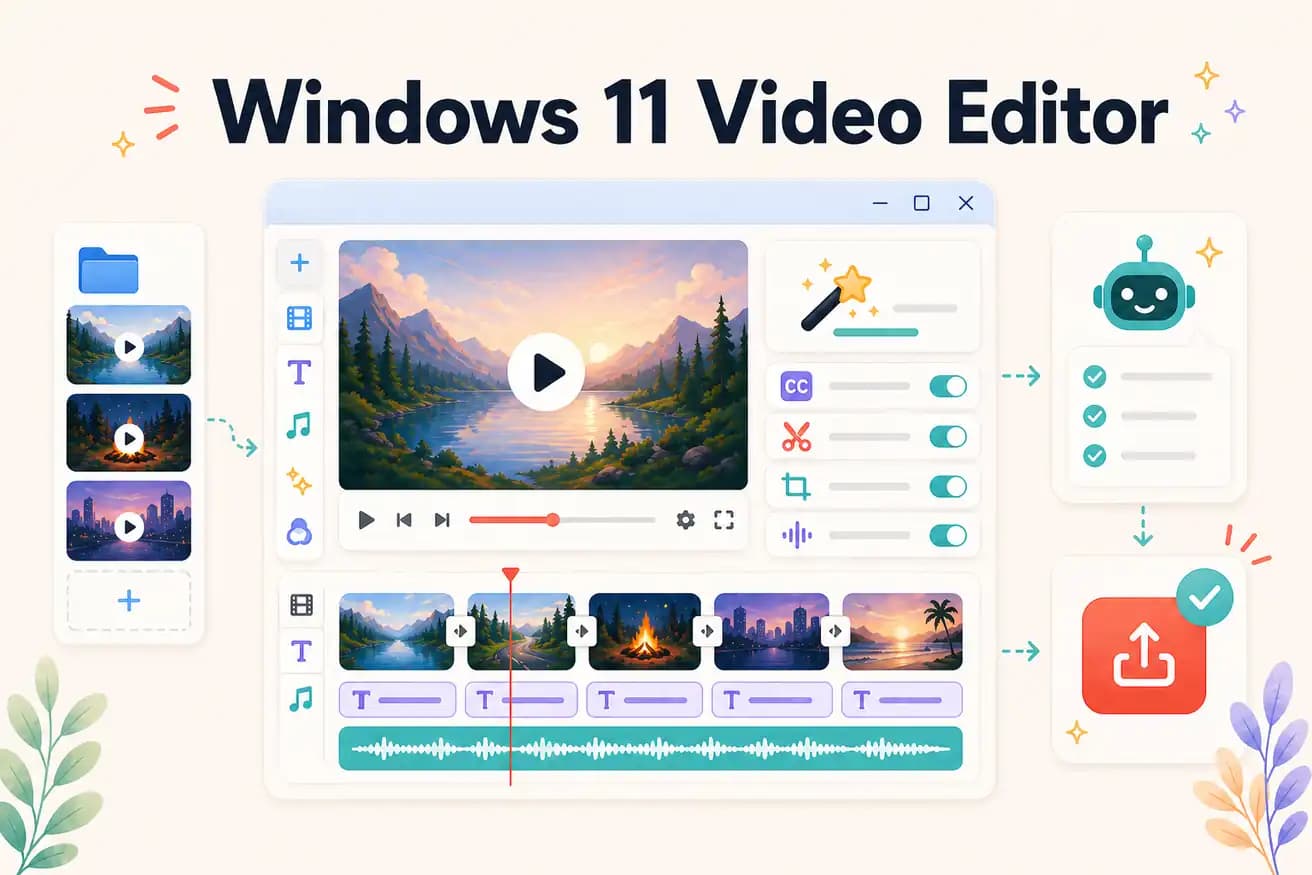
Yes — Clipchamp is pre-installed on Windows 11. It provides basic timeline editing, text overlays, and exports without watermark. For more advanced editing, DaVinci Resolve (free download) or Editly (browser-based) are the next steps.
Every major Windows 11 video editing option compared on the criteria that drive real choices.
| Decision | Other Apps | Editly |
|---|---|---|
| Clipchamp (pre-installed) | Clipchamp: already installed, basic timeline — good for simple edits, no silence removal | Editly in Edge: AI editing from a prompt — silence removal and captions from one instruction |
| DaVinci Resolve (free) | DaVinci Resolve: 2.5GB download, professional NLE, GPU-beneficial, unlimited exports | Editly: zero download, 3 free AI exports, then $28/month |
| Time per video | Windows 11 NLEs: 1-4 hours per video — manual editing regardless of tool | Editly: 15-20 minutes per video — AI editorial decisions |
| Silence removal | Windows 11 editors: Clipchamp — none; DaVinci Resolve — not built-in | Editly: silence removal in any prompt — standard, automated |
Step 1
Go to editly.in. Edge is already the default browser on Windows 11 — no additional setup.
Step 2
Sign up free, upload your video from Windows 11 file explorer or OneDrive. 3 free credits waiting.
Step 3
'Create an 8-minute YouTube video from this 35-minute recording. Remove silences. Add captions. Export 1080p.' Windows 11 doesn't render — cloud does.
Step 4
The finished MP4 saves to Windows 11. Upload to YouTube, import into DaVinci, or share directly.
Open Edge on Windows 11, go to editly.in, upload footage, write a prompt. 3 free AI-edited exports without downloading anything beyond Clipchamp's capabilities.