Step 1
Open Edge or Chrome on Windows
Go to editly.in. No Windows software to download. Works on Windows 10 and Windows 11.
Editly AI
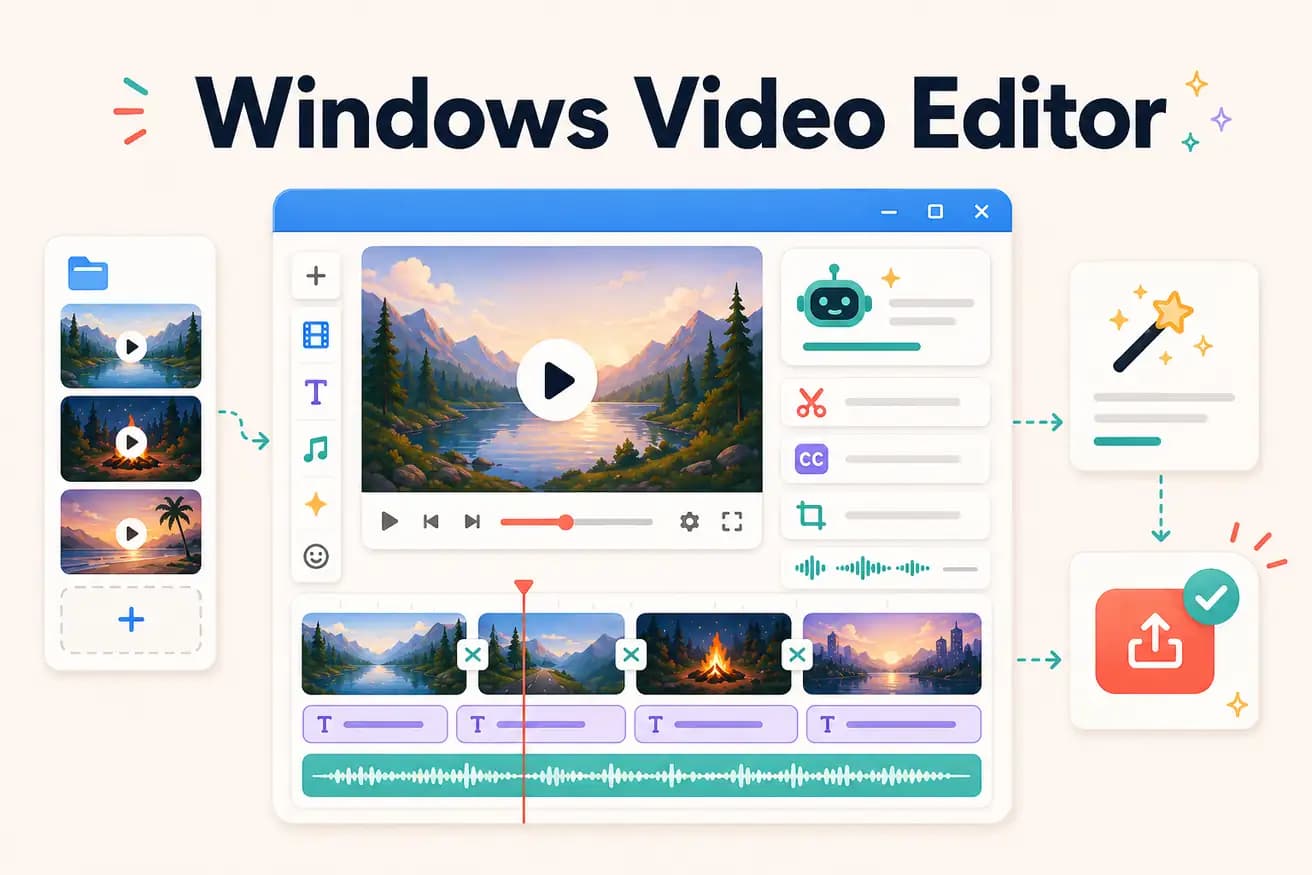
For free professional Windows editing: DaVinci Resolve. For AI-automated Windows editing: Editly in Edge. For Windows 11 convenience: Clipchamp. For professional paid: Premiere Pro. Best depends on your use case.
Comparing Windows video editors on what matters for real creator decisions.
| Decision | Other Apps | Editly |
|---|---|---|
| Availability on Windows | Clipchamp: pre-installed Windows 11; DaVinci: 2.5GB download; Filmora: paid download | Editly: open Edge → editly.in — no download, no install |
| Time to first good video | Windows NLEs: 2-4 hours learning + editing for first acceptable output | Editly: 15-20 minutes from upload to finished video on first use |
| Silence removal | Clipchamp: no; DaVinci Resolve: not built-in; Filmora: no | Editly: standard prompt option — applied automatically |
| Best use case | Windows NLEs: professional production, manual craft, specific effects | Editly: interview edits, social clips, volume content — AI-automated |
Step 1
Go to editly.in. No Windows software to download. Works on Windows 10 and Windows 11.
Step 2
Add videos from Windows file explorer. Editly handles the upload and stores it for processing.
Step 3
'Make an 8-minute YouTube tutorial from this 35-minute recording. Remove silences. Add captions.' One instruction, cloud executes it.
Step 4
How long did Editly take? Compare to your last DaVinci or Clipchamp session for the same content type.
Open Edge on any Windows machine, go to editly.in, upload footage, write a prompt. 3 free AI-edited Windows video exports to find out if AI editing saves you time.