Step 1
Open Microsoft Edge on Windows 11
Go to editly.in. No Microsoft Store purchase, no installer, no GPU driver update.
Editly AI
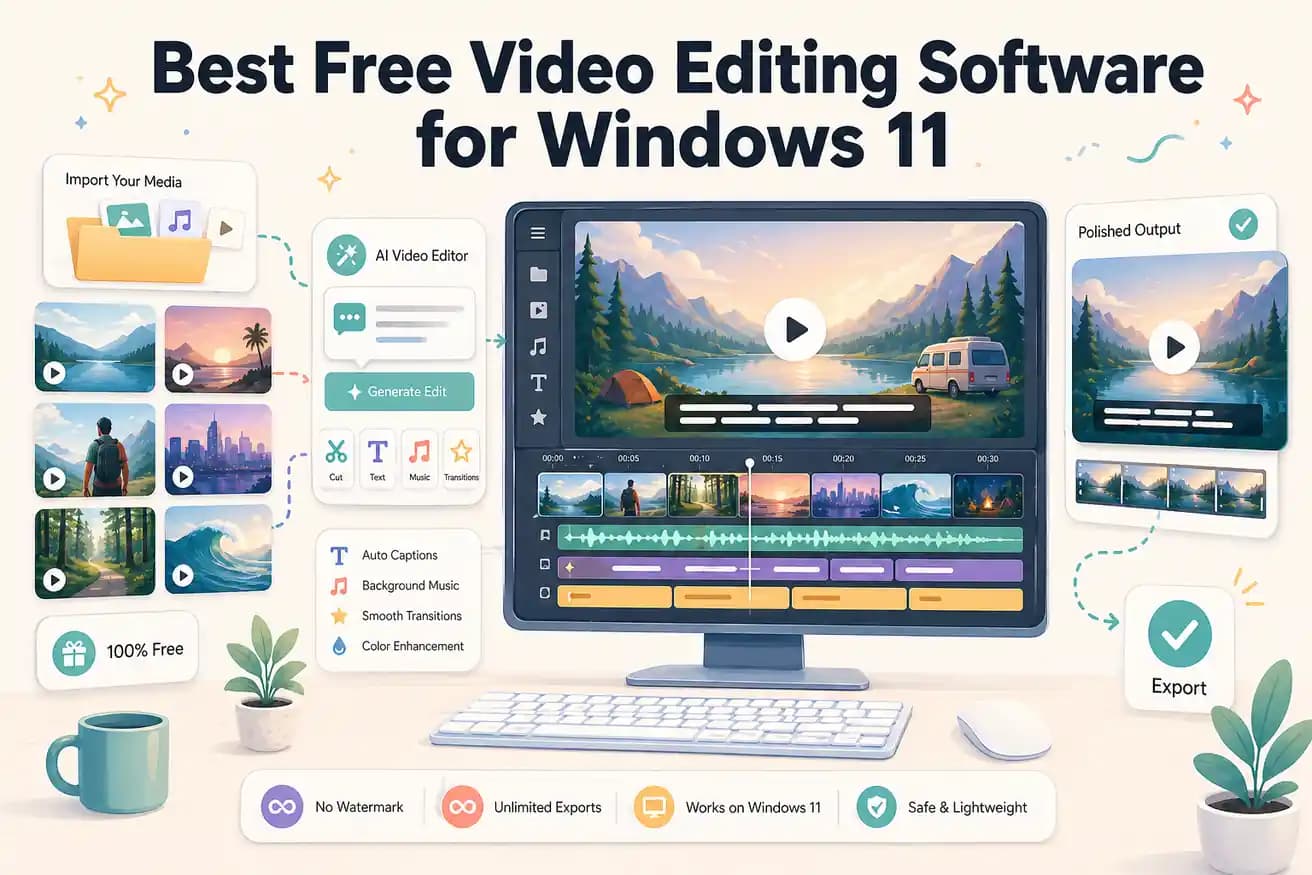
Clipchamp is good enough for simple projects — trim, merge, add text, export. It lacks silence removal, AI editorial intelligence, and auto-captions from spoken content. For more complex editing, DaVinci Resolve or Editly are better options.
Every free video editing option for Windows 11 users, assessed honestly.
| Decision | Other Apps | Editly |
|---|---|---|
| Availability | Clipchamp: pre-installed on Windows 11; DaVinci Resolve: 2.5GB download; Shotcut/Kdenlive: separate downloads | Editly: open editly.in in Microsoft Edge — no download required |
| Silence removal | Clipchamp: not available; DaVinci Resolve: not built-in without scripting; Shotcut/Kdenlive: not available | Editly: silence removal as a prompt instruction — applies automatically |
| Auto-captions | Clipchamp: limited auto-caption; DaVinci Resolve: Speech to Text (requires setup); others: SRT import only | Editly: captions from spoken content generated automatically as part of every edit |
| Free export limits | Clipchamp: unlimited free exports; DaVinci Resolve: unlimited free exports; Shotcut/Kdenlive: unlimited | Editly: 3 free exports (full quality, no watermark), then $28/month for 100 exports |
Step 1
Go to editly.in. No Microsoft Store purchase, no installer, no GPU driver update.
Step 2
Use a video you'd normally take into Clipchamp or DaVinci. This gives you a direct comparison on Windows 11.
Step 3
'Trim to 5 minutes, remove silences, add captions, export 1080p YouTube.' Editly processes in the cloud and returns a finished video.
Step 4
If the output is acceptable and the time savings are real, Pro at $28/month is the upgrade. Otherwise, Clipchamp and DaVinci are waiting.
Open Microsoft Edge on Windows 11, go to editly.in, upload footage, write a prompt. 3 free AI-edited exports to compare against Clipchamp and DaVinci Resolve.