Step 1
Upload your recording
Add your podcast, webinar, interview, or tutorial. Editly handles long recordings that would be unwieldy in CapCut's mobile timeline.
Editly AI
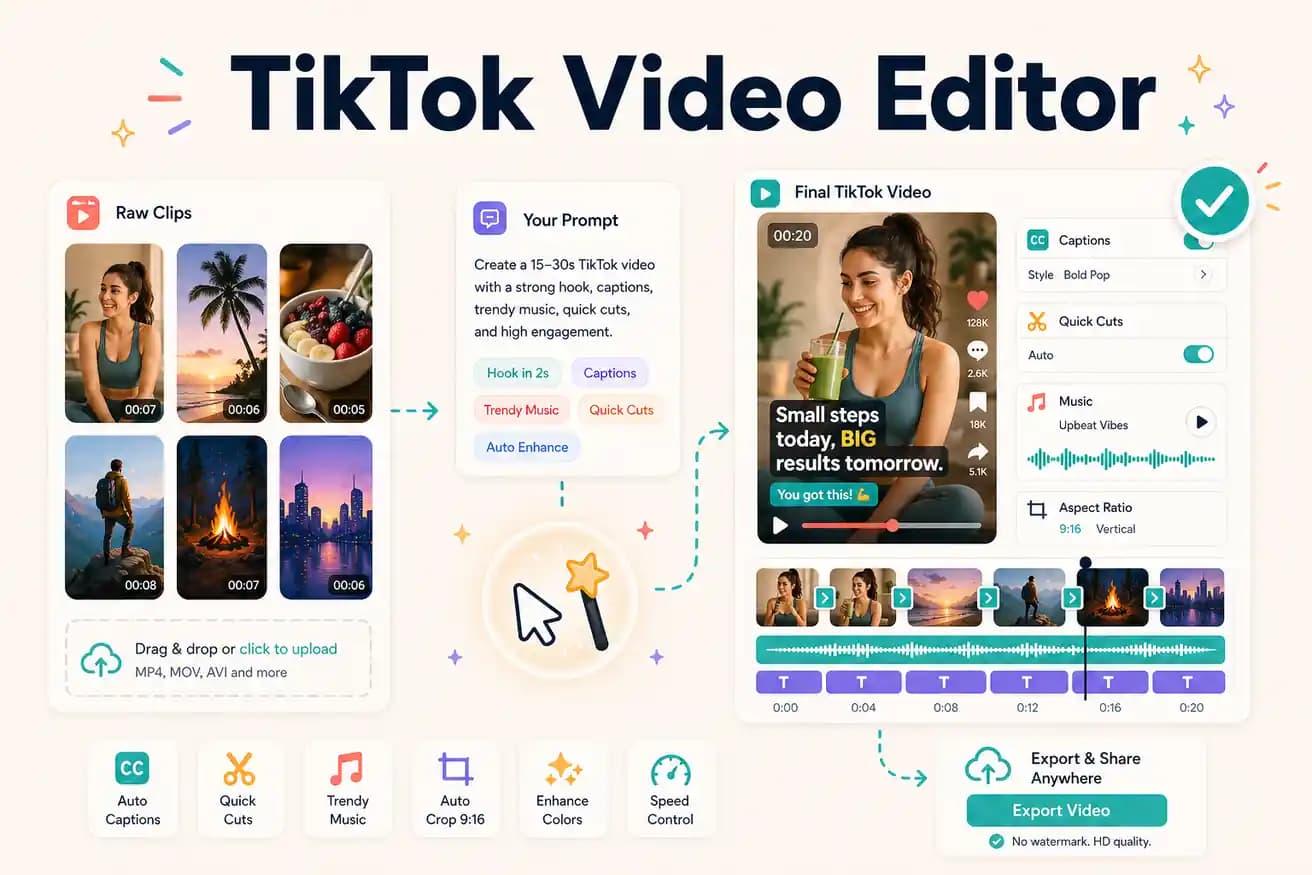
CapCut is the best for mobile-native TikTok creation with effects and trending audio. Editly is best for extracting TikTok clips from long-form footage with AI automation. For most creators, both tools serve different parts of the TikTok workflow.
For different TikTok workflows, different tools win. Here's the breakdown.
| Decision | Other Apps | Editly |
|---|---|---|
| Mobile phone footage | CapCut: native mobile experience, trending audio, effects — best for phone-filmed TikTok | Editly: better for longer recorded footage — use CapCut for mobile-native TikToks |
| Long footage extraction | CapCut: manual scrubbing to find segments, manual clip per TikTok — time-intensive at scale | Editly: AI identifies best segment, applies 9:16 and captions from one prompt per TikTok |
| Captions | CapCut: good auto-captions on mobile but requires per-TikTok styling | Editly: caption style in the prompt — burned in before upload, consistently styled |
| Batch production | CapCut: each TikTok is a separate mobile project — linear workflow for each | Editly: each TikTok is a prompt on the same upload — scalable at volume |
Step 1
Add your podcast, webinar, interview, or tutorial. Editly handles long recordings that would be unwieldy in CapCut's mobile timeline.
Step 2
'Extract the 20 seconds where I explain [specific point]. 9:16 format. Start with the most surprising statement. Add bold white captions. Remove any pauses.'
Step 3
Editly returns a vertical, captioned, hook-first clip. Check the opening second — does it stop the scroll? Are the captions readable?
Step 4
Write a new prompt targeting a different segment. Same upload, different topic — consistent quality across all TikToks.
Upload your next podcast or interview recording. Write a TikTok extraction prompt. See how many strong TikToks are hiding in your footage.
Related editing pages