Step 1
Upload your footage
Add the recording you want to create a TikTok from. Editly handles long recordings and extracts the right segment.
Editly AI
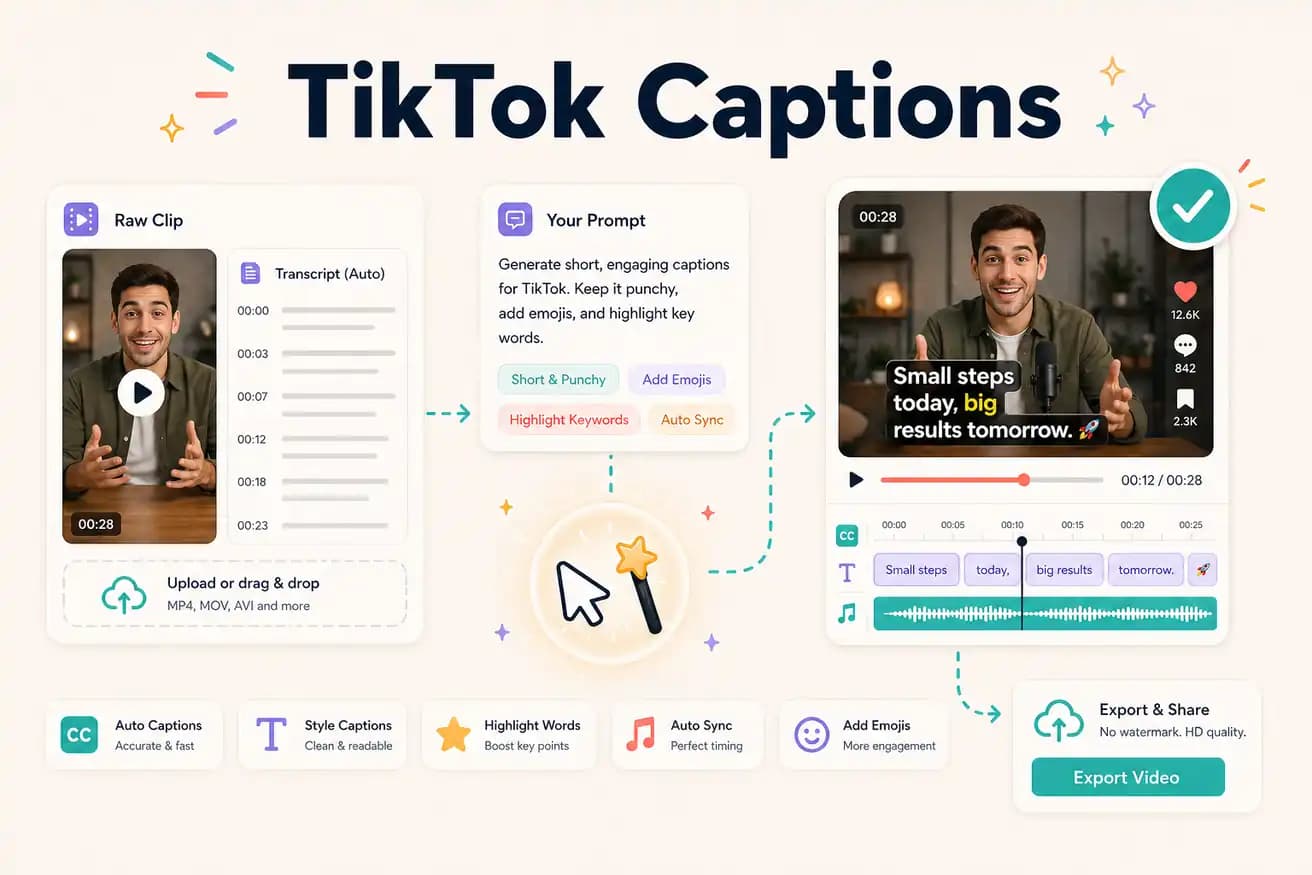
Yes — include 'add captions' in your prompt and Editly generates captions from the spoken content in your footage. You can specify the style: 'bold white captions at the bottom' or 'yellow captions centered on screen.'
Comparing the main approaches to adding captions to TikTok content.
| Decision | Other Apps | Editly |
|---|---|---|
| Visibility | TikTok native captions: only visible if viewer has captions enabled — many viewers never see them | Editly burned-in: always visible to all viewers regardless of their caption settings |
| Style control | TikTok native captions: fixed TikTok styling — limited font and position options | Editly: specify font style, color, size, and position in the prompt |
| Accuracy | TikTok auto-captions: good but struggles with accents, technical terms, and fast speech | Editly (Gemini AI): handles accented speech and domain vocabulary better than generic captioning |
| Workflow | Post-upload captioning: separate step after editing — additional time per TikTok | Editly: captions in the edit prompt — no separate step, included in the output |
Step 1
Add the recording you want to create a TikTok from. Editly handles long recordings and extracts the right segment.
Step 2
'Extract 30 seconds about [topic]. 9:16 format. Add bold white captions with black outline in the lower third. Start with a hook.'
Step 3
Editly returns the clip with captions burned in. Check accuracy, readability, and positioning.
Step 4
Download and upload to TikTok. The captions are part of the video — no additional captioning step required.
Test AI-generated burned-in captions on your footage. Upload, write a prompt with caption instructions, download a captioned TikTok-ready clip.
Related editing pages