Step 1
Upload your recording
Add your interview, tutorial, product demo, or webinar recording to Editly.
Editly AI
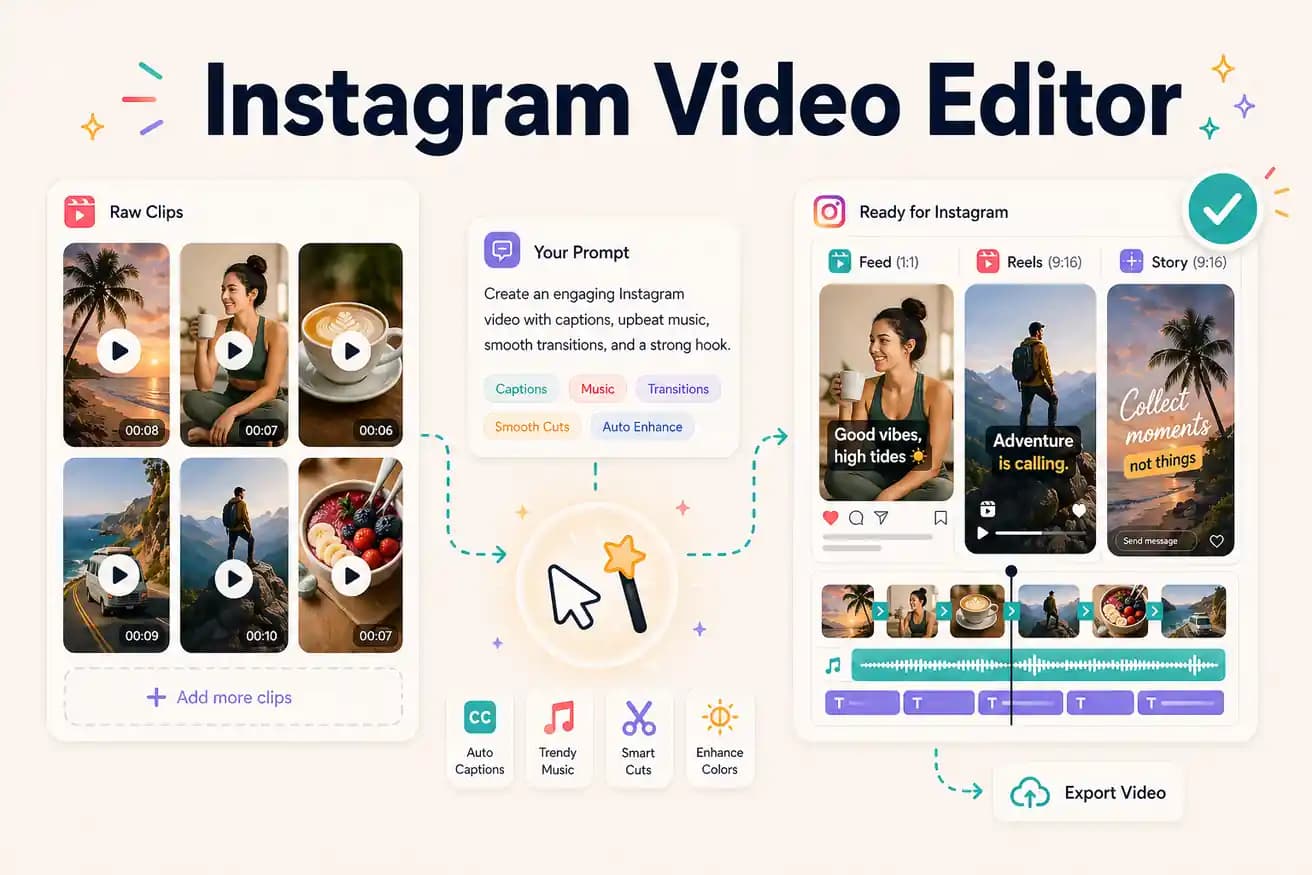
Mobile-native Instagram creators typically use CapCut or InShot. Creators with longer footage who need to repurpose into Instagram content at scale increasingly use AI tools like Editly for the extraction, framing, and captioning work.
Different workflows for different Instagram content types. Match the tool to the job.
| Decision | Other Apps | Editly |
|---|---|---|
| Phone-filmed Instagram content | CapCut / InShot: native mobile experience — best for phone-filmed Instagram content | Editly: better for longer recorded footage — use mobile apps for phone clips |
| Repurposing long footage for Instagram | Mobile apps: tedious for long footage — manual scrubbing per clip, per-format projects | Editly: prompt per clip and format — efficient repurposing at scale |
| Format flexibility | Mobile apps: separate project for each format — Reel, Story, and Feed all different projects | Editly: format specified in prompt — same upload, different prompts for each format |
| Captions | Mobile apps: caption each video separately, review per video on mobile | Editly: captions from prompt — consistent style, no per-video review needed |
Step 1
Add your interview, tutorial, product demo, or webinar recording to Editly.
Step 2
'Create a 60-second Instagram Reel from minute 5-8. 9:16. Start with my most interesting point. Add captions. Remove pauses.'
Step 3
'Create a 45-second Instagram Story from minute 12-15. 9:16. Focus on the key takeaway. Add captions.' Different segment, same recording.
Step 4
Schedule your Reel, Story, and Feed video throughout the week. One recording, multiple content pieces, consistent presence.
Upload your footage and create 3 Instagram-ready video pieces. Test the format flexibility — write one prompt for a Reel, one for a Story, one for Feed.