Step 1
Upload your recorded footage
Add a relevant recording — product demo, Q&A, tutorial clip, or any footage with content your audience would value in a Story.
Editly AI
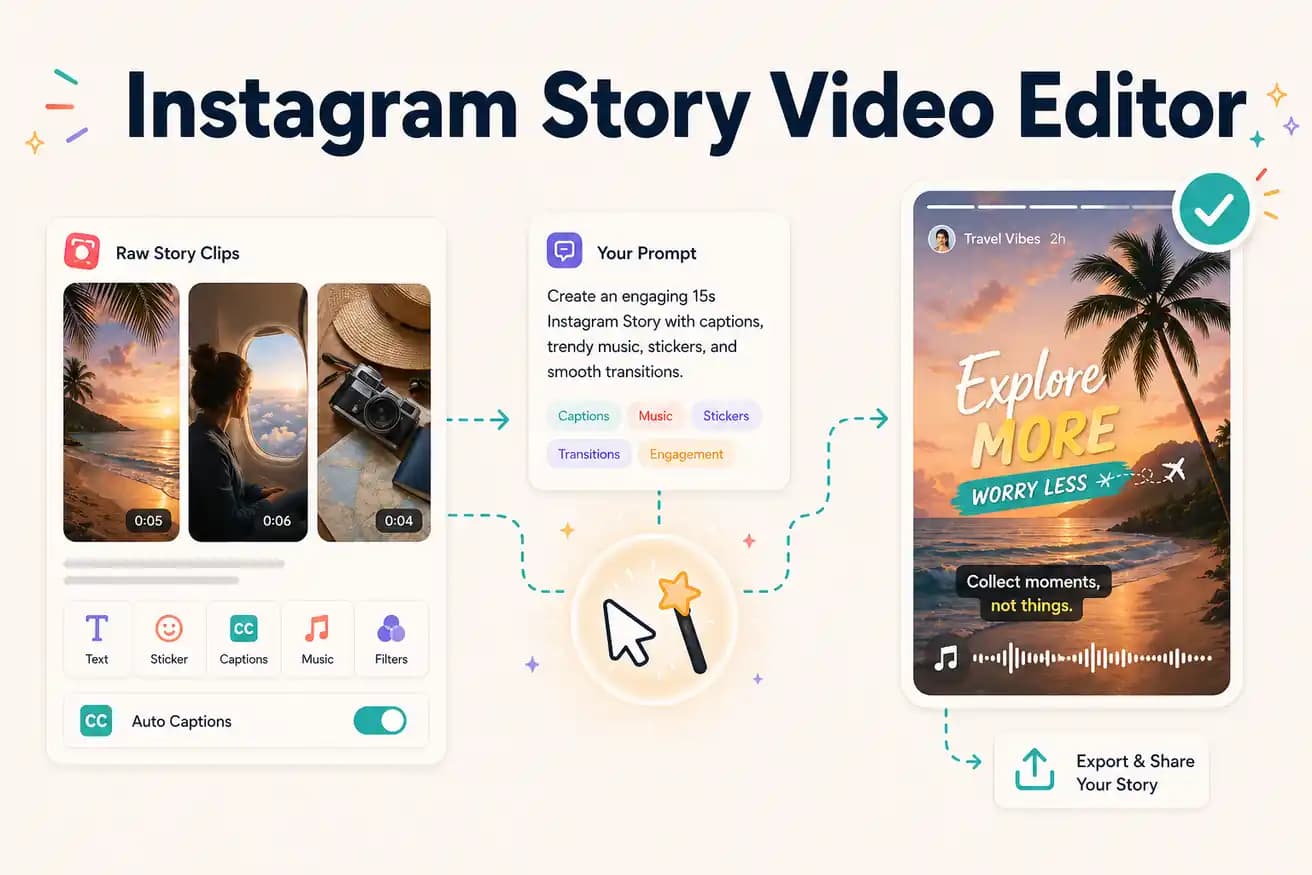
For phone-filmed Stories: CapCut and InShot are the easiest. For extracting Story clips from longer footage: Editly is faster because AI handles the segment selection, vertical framing, and captions automatically.
Comparing manual Story editing with CapCut or InShot against AI-powered Story extraction with Editly.
| Decision | Other Apps | Editly |
|---|---|---|
| 9:16 framing | CapCut / InShot: manual canvas crop tool — adjust frame position per clip | Editly: '9:16 for Instagram Stories' in the prompt — applied automatically |
| Story length control | Mobile apps: manual trim to 60 seconds — scrub through footage to find right clip | Editly: 'keep it to 45 seconds' in the prompt — AI extracts the right length |
| Captions | Mobile apps: add text overlay manually for each Story | Editly: auto-captions from spoken content, burned in, styled from prompt |
| Volume production | Mobile apps: each Story is a manual project — time scales with frequency | Editly: each Story is a prompt — batch Story production from one upload |
Step 1
Add a relevant recording — product demo, Q&A, tutorial clip, or any footage with content your audience would value in a Story.
Step 2
'Extract a 45-second Instagram Story about [topic]. 9:16 format. Add captions. Keep the most interesting insight. Start immediately — no slow intro.'
Step 3
Editly returns a 9:16 captioned clip ready for Stories upload. Check the length and that it starts strong.
Step 4
Add the clip to your Instagram Story. Download and repeat for the next card or the next Story in your sequence.
Upload a recording you want to turn into Stories content. Write a prompt for a Story clip. Test Editly's vertical framing and caption generation.
Related editing pages