Step 1
Upload your footage
Add your video with spoken content. The AI will transcribe and caption it as part of the edit.
Editly AI
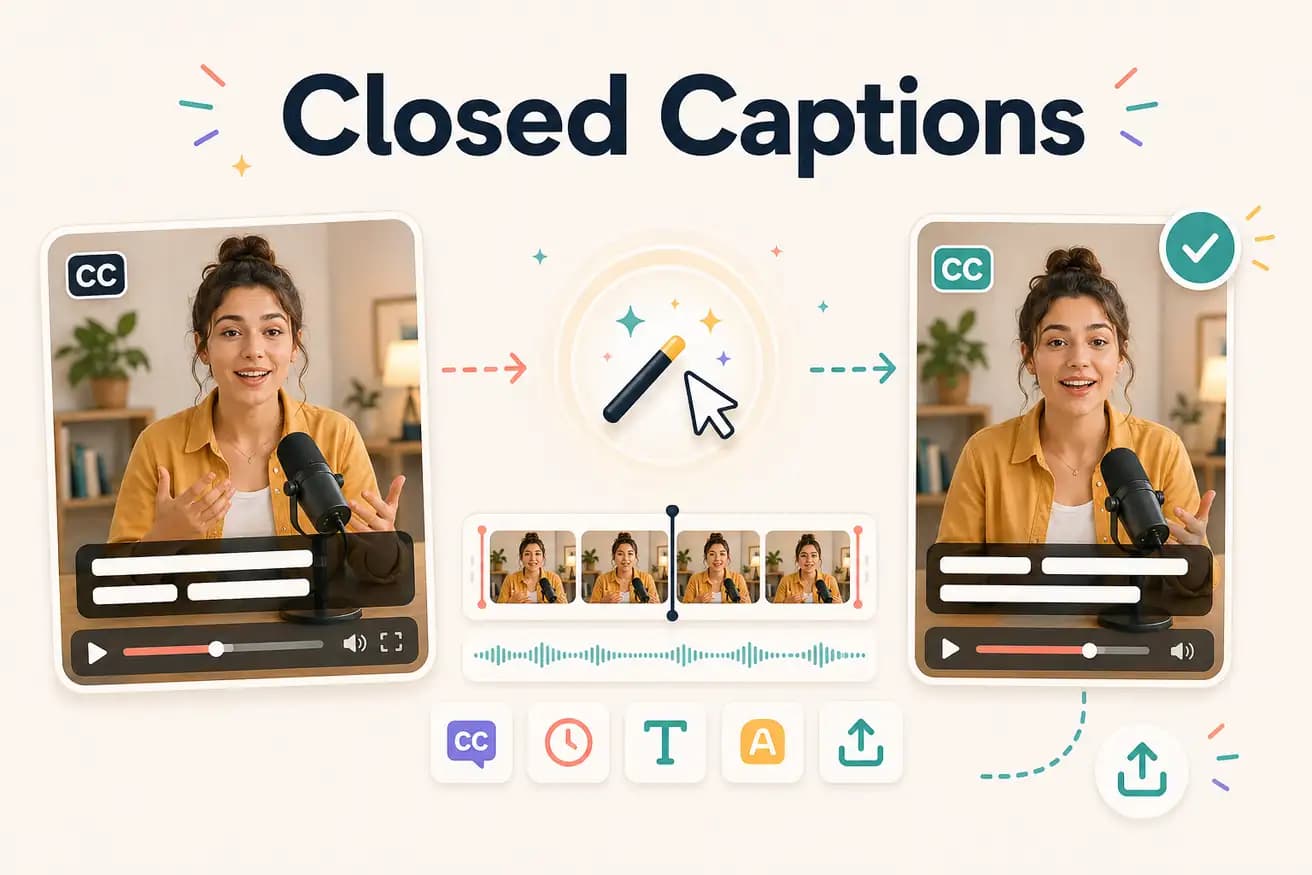
No — Editly burns open captions into the video image. It doesn't produce separate SRT or VTT caption track files. For broadcast or formal accessibility compliance requiring SRT files, use a dedicated captioning service.
Comparing different ways to add captions to video content.
| Decision | Other Apps | Editly |
|---|---|---|
| Platform auto-captions (TikTok, YouTube) | Platform post-upload auto-captions: viewer opt-in required, styling limited, not always shown | Editly burned-in: always visible, styled from prompt, no viewer action required |
| Separate captioning tools | Separate tools (Rev, Kapwing subtitles): after-edit step, separate workflow, review required | Editly: part of the edit prompt — generated and applied in the same pass as all other edits |
| Manual captioning | Manual: transcribe, time, style, apply — 30-90 minutes per video | Editly AI: 0 additional minutes — included in the 15-20 minute total AI edit time |
| Closed caption files | SRT/VTT files: separate output required for platform accessibility compliance — not produced by Editly | Editly: burned-in open captions only — for SRT files, use dedicated captioning services |
Step 1
Add your video with spoken content. The AI will transcribe and caption it as part of the edit.
Step 2
Example: 'Create a 5-minute YouTube video. Remove silences. Add bold white captions at the bottom. Export 16:9.' Captions are one instruction in the same prompt as everything else.
Step 3
Editly returns a finished video with AI-generated captions burned in, styled according to your prompt.
Step 4
Check caption accuracy in key sections. For social media content, spot-checking is typically sufficient. Download and post.
Upload footage, write a prompt with caption instructions, receive a captioned video. 3 free exports to test AI caption generation on your content.
Related editing pages