Step 1
Open Edge on Windows
Go to editly.in. Already the default browser on Windows 11 — no additional setup.
Editly AI
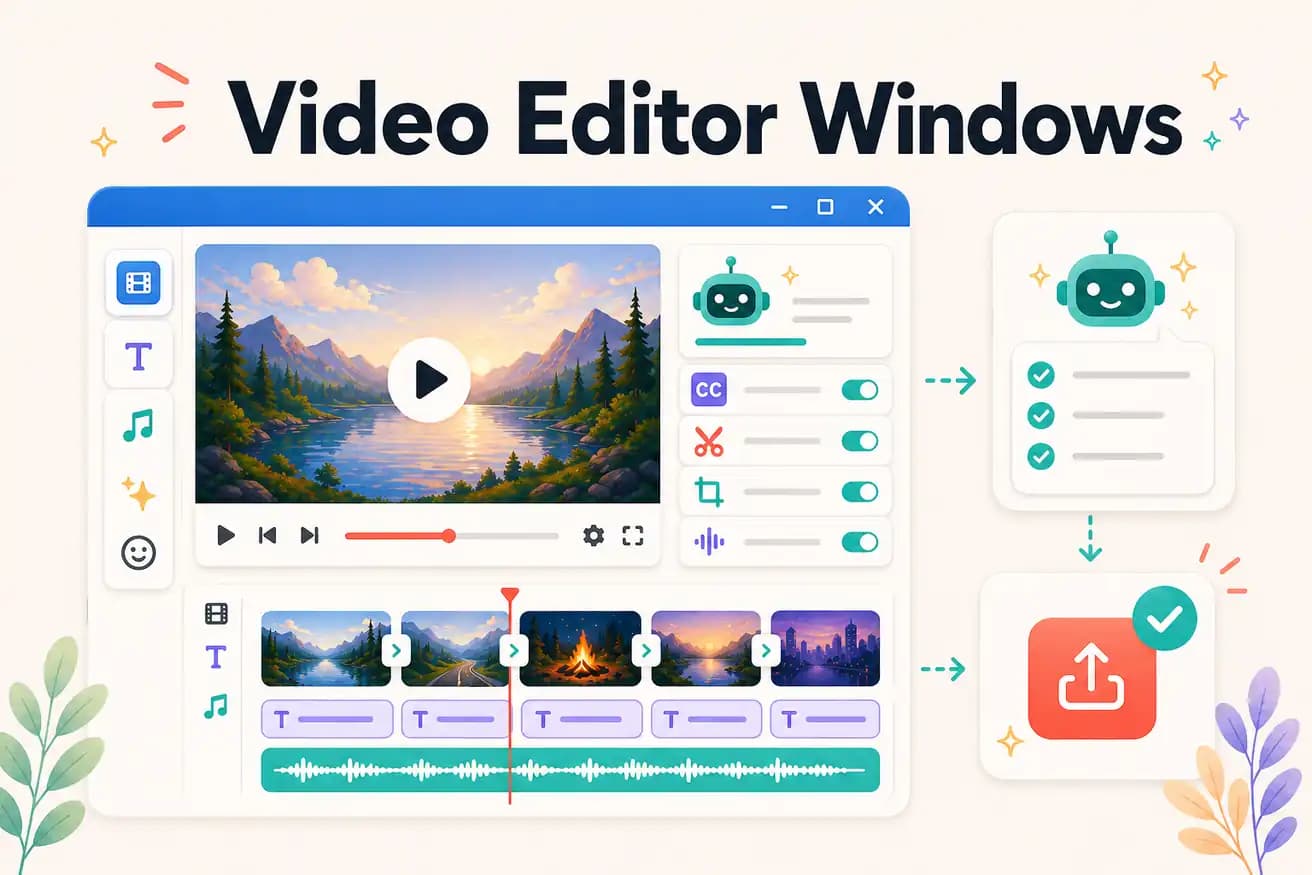
DaVinci Resolve is the best free professional Windows editor. Editly in Edge is the best AI-powered Windows option. Clipchamp is the most convenient free basic option (built into Windows 11).
Comparing Windows video editors on the criteria that drive real decisions.
| Decision | Other Apps | Editly |
|---|---|---|
| Available on Windows 11 immediately | Clipchamp: pre-installed — open and start immediately, no download | Editly in Edge: open Edge → editly.in — 3 free AI exports, no install |
| Free professional Windows editing | DaVinci Resolve: 2.5GB download, professional NLE, unlimited exports | Editly: browser-based, 3 free AI exports, then $28/month |
| Time per video | Windows NLEs (DaVinci, Premiere): 2-4 hours per video — manual editing | Editly: 15-20 minutes per video — AI editorial decisions |
| Silence removal on Windows | Windows editors: not built-in in Clipchamp or DaVinci — manual or scripted | Editly: 'remove silences' in the prompt — automated |
Step 1
Go to editly.in. Already the default browser on Windows 11 — no additional setup.
Step 2
Add your video from Windows file explorer. Standard formats handled.
Step 3
'Create an 8-minute YouTube tutorial from this 35-minute recording. Remove silences. Add captions. Export 1080p.' One prompt.
Step 4
Finished MP4 downloads to Windows. Publish or import into DaVinci for finishing.
Open Edge on Windows, go to editly.in, upload footage, write a prompt. 3 free AI-edited Windows video exports.